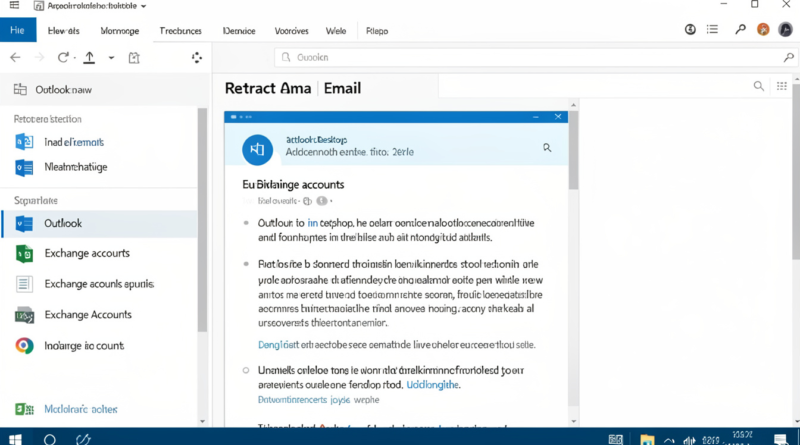
How to Retract an Email in Outlook
In the fast-paced world of digital communication, sending an email by mistake can be a stressful experience. Fortunately, Microsoft Outlook provides a feature that allows users to retract or recall an email, saving them from potential embarrassment or confusion. Whether it’s an email sent to the wrong recipient, with incorrect information, or missing attachments, knowing how to retract an email in Outlook can be a lifesaver. This article will provide a step-by-step guide on how to recall an email, explain its limitations, and offer tips to increase the chances of a successful retraction.
Understanding Email Retraction in Outlook
Email retraction in Outlook is officially known as the “Recall” feature. It is designed to allow users to delete or replace an email that has already been sent to someone within the same organization or email server. This feature is most effective when both the sender and recipient are using Microsoft Exchange or Outlook within the same network.
It is important to understand that the recall feature does not guarantee the email will be removed from the recipient’s inbox. Various factors, such as whether the email has been read or if the recipient is using a different email client, can affect the success of the recall. However, when used correctly and in a timely manner, it can prevent miscommunications and reduce the risk of sending sensitive information to the wrong person.
How to Retract an Email in Outlook
Retracting an email in Outlook involves a few simple steps. The process is slightly different depending on whether you are using the desktop version of Outlook or Outlook on the web.
Open Outlook and navigate to the “Sent Items” folder where your sent emails are stored. Find the email you want to recall. Double-click to open the email in a new window; the recall option is not available from the reading pane.
Once the email is open, click on the “Message” tab located in the toolbar at the top of the window. In the “Move” group, you will find the “Actions” option. Click on it to reveal a drop-down menu.
Select “Recall This Message.” A new dialog box will appear with two options. The first option is “Delete unread copies of this message,” which will attempt to remove the email from the recipient’s inbox. The second option is “Delete unread copies and replace with a new message,” which allows you to modify the email before resending it.
After selecting your preferred option, click “OK.” If you chose to replace the email, make the necessary changes and then resend it. Outlook will attempt to recall the email and send you a notification indicating whether the recall was successful or failed for each recipient.
Conditions for Successful Email Recall
While retracting an email in Outlook can be useful, it is essential to know the conditions that increase the likelihood of success. First, the recipient must also be using Outlook within the same Exchange server or organization. Emails sent to recipients outside your organization, such as Gmail or Yahoo, cannot be recalled.
Second, the email must be unread. Once the recipient opens the email, the recall will fail, and both the original and recalled messages may remain visible.
Third, the recipient’s mailbox rules and settings can affect recall success. If the recipient has a rule that automatically moves emails to another folder, the recall attempt may fail. Timing is crucial, and attempting to recall an email immediately after sending it increases the likelihood of success.
Tips for Increasing Recall Success
To improve your chances of successfully retracting an email, consider implementing a few practical strategies. First, double-check the recipient’s email address before sending sensitive messages. Preventing mistakes at the outset is more effective than relying on recall.
Second, consider using the “Delay Delivery” feature in Outlook. This feature allows you to schedule an email to be sent a few minutes after hitting send, giving you a short window to cancel or edit the email before it reaches the recipient.
Third, communicate promptly with the recipient. If the recall fails, sending a follow-up email explaining the mistake or correcting the information can help mitigate any confusion or misunderstanding.
Fourth, be aware of the organization’s email policies. Some workplaces may restrict recall features or have specific guidelines for handling sensitive information. Following these rules ensures you use the feature effectively and responsibly.
Limitations of Email Recall in Outlook
Despite its usefulness, the email recall feature in Outlook has several limitations that users must understand. As mentioned, the feature only works within the same Exchange server environment. Emails sent outside the organization cannot be recalled.
Additionally, recall success depends on the recipient’s actions. If the recipient has already read the email or has rules that redirect emails to other folders, the recall may fail. Even when the recall succeeds, the recipient may still see a notification that a recall was attempted, which could raise curiosity or suspicion.
It is also important to note that Outlook on the web (OWA) does not currently support message recall in the same way as the desktop version. Users relying solely on web access may need alternative strategies, such as sending a follow-up correction email.
Best Practices for Avoiding Email Mistakes
Prevention is always better than cure when it comes to email communication. By following some best practices, you can minimize the need to recall emails. Always proofread your emails before sending them, checking for errors in content, attachments, and recipient addresses.
Use clear subject lines and concise messages to reduce misunderstandings. If the email contains sensitive or critical information, consider having a colleague review it before sending.
Organize your contacts and email groups carefully. Avoid using auto-complete features for unfamiliar recipients to prevent accidental sends. Implementing a delay in email delivery can also provide a buffer period to cancel or edit messages if necessary.
Outlook Features Complementing Recall
In addition to the recall feature, Outlook offers several complementary tools to manage emails effectively. The “Delay Delivery” option, as mentioned earlier, is a proactive way to prevent mistakes.
The “Undo Send” feature, available in some Outlook versions, allows users to cancel sending an email within a few seconds after clicking send. Rules and filters can also help organize incoming emails, reducing the chance of miscommunication.
By combining these features, users can manage their emails more effectively, minimize errors, and maintain professional communication standards.
Common Scenarios for Email Retraction
Email retraction is particularly useful in several common scenarios. For instance, sending an email to the wrong recipient is a frequent mistake, especially in large organizations with similar email addresses.
Another scenario involves sending an incomplete email without necessary attachments. Rather than sending a follow-up email immediately, retracting the original email and resending it with the correct attachments can appear more professional.
Emails containing sensitive information, such as confidential reports or personal data, are also prime candidates for retraction if sent mistakenly. Prompt recall attempts can prevent unintended exposure and maintain data security.
Conclusion
Retracting an email in Outlook is a powerful feature that can help correct mistakes and prevent misunderstandings. By understanding the conditions for successful recall, following best practices, and using complementary Outlook features, users can manage email communications effectively and professionally. While recall is not foolproof and has limitations, knowing how to use it correctly can save time, reduce stress, and preserve credibility. Proactive measures such as proofreading, delaying delivery, and double-checking recipients can further reduce the need for email recall.
Frequently Asked Questions (FAQs)
1. Can I recall an email sent to Gmail or Yahoo?
No, the recall feature in Outlook only works within the same Exchange server or organization. Emails sent to external domains like Gmail or Yahoo cannot be retracted.
2. How do I know if my email recall was successful?
Outlook sends a notification for each recipient indicating whether the recall succeeded or failed. Check your inbox for these notifications after initiating the recall.
3. Can I recall an email that has already been read?
No, once the recipient opens the email, the recall attempt will fail. Both the original and the attempted recall message may remain visible.
4. Is email recall available on Outlook web?
Outlook on the web does not fully support email recall like the desktop version. Alternative strategies, such as sending a correction email, are recommended.
5. What is the best way to prevent sending emails by mistake?
Double-check recipient addresses, proofread your content, use the “Delay Delivery” feature, and consider having sensitive emails reviewed before sending.